

Product Catalog
A product catalog represents the entire collection of products available for purchase on your e-commerce store. Fanplayr uses your product catalog in two primary ways:
- Your catalog data is used along with events captured from your store to train the AI models that power intelligent product recommendations.
- Once initial model training is complete, your catalog is used as a live database to return detailed product information alongside recommendations shown to your shoppers.
How catalogs work
Use one catalog per language and currency combination
Typically you will maintain a single product catalog within Fanplayr, provided all products use the same language and currency. If your store uses more than one language or currency, you will need to maintain separate catalogs so that AI models can be trained on consistent data.
By default, your account will have a single catalog linked to "all domains". Additional catalogs must each be linked to a specific domain and can be created from the catalog list.
Import catalog files to create and update products
Catalog files are structured data files representing one or more products you wish to create or update. See Catalog Format for full details on the supported data structure.
Updates can be imported into Fanplayr via the Web Portal or as automated FTP uploads.
Perform regular imports to improve recommendation quality
Regularly synchronising your product catalog with Fanplayr ensures that recommendations reflect the most up-to-date product prices, stock availability, and other details.
Managing catalogs
A list of all catalogs for your account is shown under the Account Settings area of the Portal. Each entry shows the language and currency of products in the catalog, as well as the total number of imported products and the number currently in stock.

Clicking the View imports link takes you to the catalog's import section, where you can view the status of current and past import operations and initiate new imports.
.CqeYyjAV.png)
Properties and actions shown for each import operation include:
- State — The overall status of the operation:
- Pending — Waiting to be executed.
- Running — Currently being executed.
- Completed — Finished without any major errors. Note: a completed operation may still have minor errors where individual products failed to import.
- Failed — Was not able to run to completion, or zero product entries were successfully imported.
- Source — The operation creation source (Portal or FTP).
- Item Count — The total number of product entries identified in the import file.
- Success Count — The total number of product entries successfully imported.
- Failed Count — The total number of product entries that failed to import.
- Download Logs — Downloads the operation log, which identifies any errors encountered and can be used to correct your catalog import files.
Creating and editing catalogs
You can create any number of additional catalogs, but each must be linked to a specific domain.
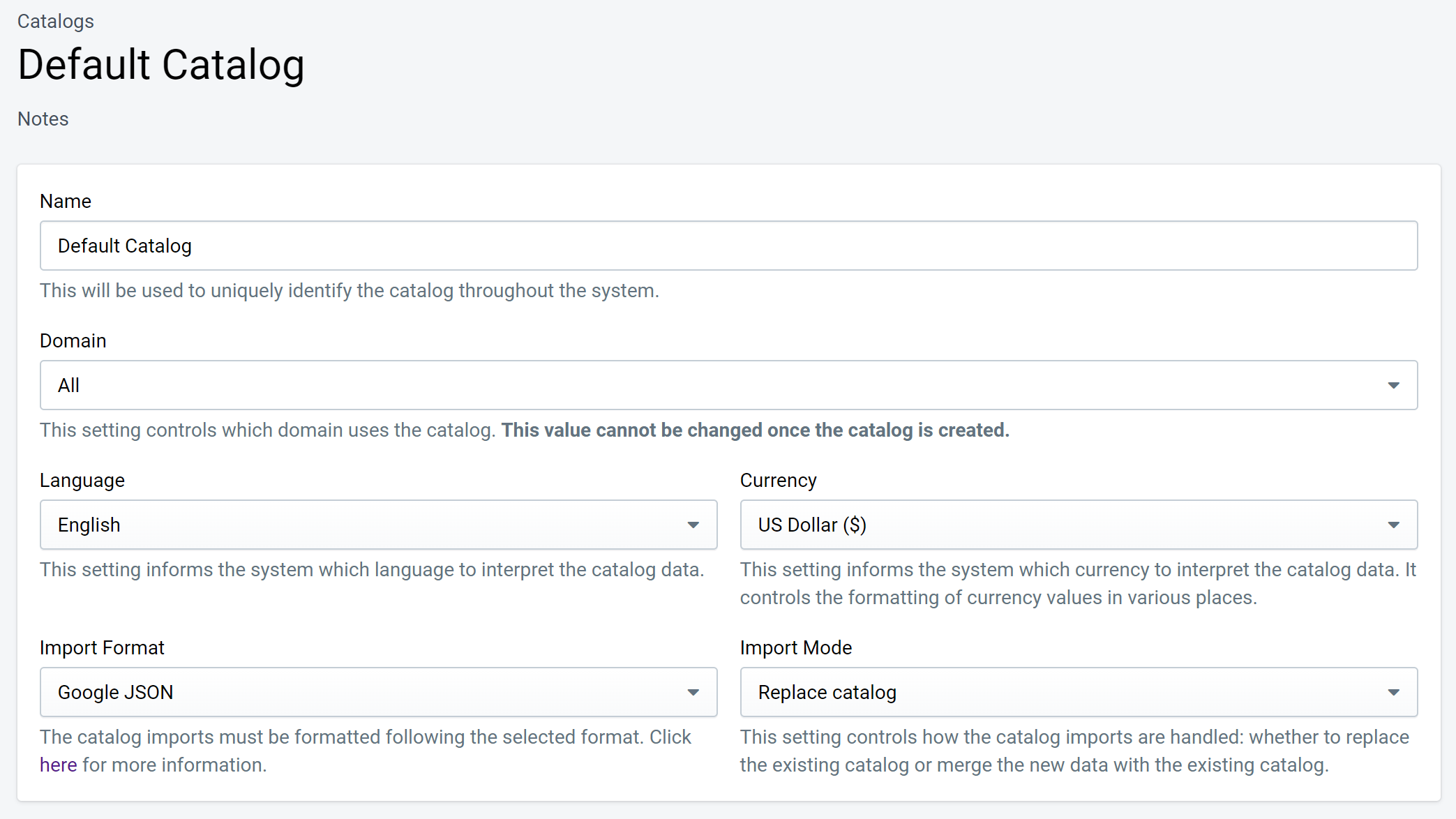
The editable properties of a catalog are:
- Name — Uniquely identifies the catalog throughout the system.
- Domain — Links the catalog to a specific domain as defined in Account / Domains. Your account has a default catalog linked to "all domains", which can be overridden on a per-domain basis by adding additional catalogs.
- Language — The language used for catalog text fields such as product name and description.
- Currency — The currency for product prices in this catalog.
- Import Format — The format used to interpret catalog imports. See Catalog Format.
- Import Mode — Whether to merge new imports into the existing catalog or replace the catalog entirely. See Update strategy below.
WARNING
The linked domain cannot be changed after a catalog is created.
Update strategy
Your product catalog can be configured to use one of two update strategies:
Merge products (default)
Adds any new products from the import to the catalog and updates any existing products — matched by Product ID — with their new attributes. This is the recommended strategy for most stores.
Replace catalog
Replaces the entire product catalog with each import.
- Use this strategy when your import file always contains the complete list of products in your catalog.
- Not recommended for very large catalogs or catalogs updated frequently, as each import involves significant processing.
- Contact Fanplayr if you wish to use this strategy.